
How to Download And Install Java on Windows, Linux and macOS?
Learn to download and install Java on your device for free whether it is a macOS, Windows, or Linux based operating system. Download Java and learn how to check the latest versions of Java available on your device in this tutorial.
 Varun Saharawat30 Oct, 2025
Let us go through this tutorial to learn how to download and install Java on our device, whether it is a macOS, windows, or Linux device. Java is an in-demand programming language used by programmers all over the world. Hence, being familiar with how to install Java on your system is of supreme importance.
Whether you are a beginner who is just starting out with Java, this guide will help you get a complete understanding of how to download and install Java.
What Is a Java Language?
Java is a programming language developed by Sun Microsystem (known as Oracle) in 1995. Since then Java has undergone various version updates and improvements in features. There are many applications and websites that need Java to run. Whenever you talk about programming languages, Java always comes first, whether it is gaming supercomputers or data centers, Java got it all covered! In this tutorial, you will get a step by step explanation of how to download and install Java on your device.Check If Java Is Already Installed On Your Pc
First, let us check whether the Java program is already installed on our computer device. You can find the version of the Java language if it is already installed on your device. Check if Java is already on your computer.- Open the Command prompt or terminal on your device.
- On the terminal window, type the command given below.
| Java –version |
- If Java is not already installed on your system, then you will find a message on the console that the term “Java” is not recognized. You will have to download and install Java on your system.

- If Java is present in your system, then you will find a message on the console with the version details of the current Java language present on your system.

- If you get the following output, you can move forward to download and install Java on your device. We will learn one by one for all devices i,e. Windows, macOS, and Linux-based operating system devices.
Download And Install Java on the Windows Operating System
Follow the step by step process to download and install Java on the Windows operating system.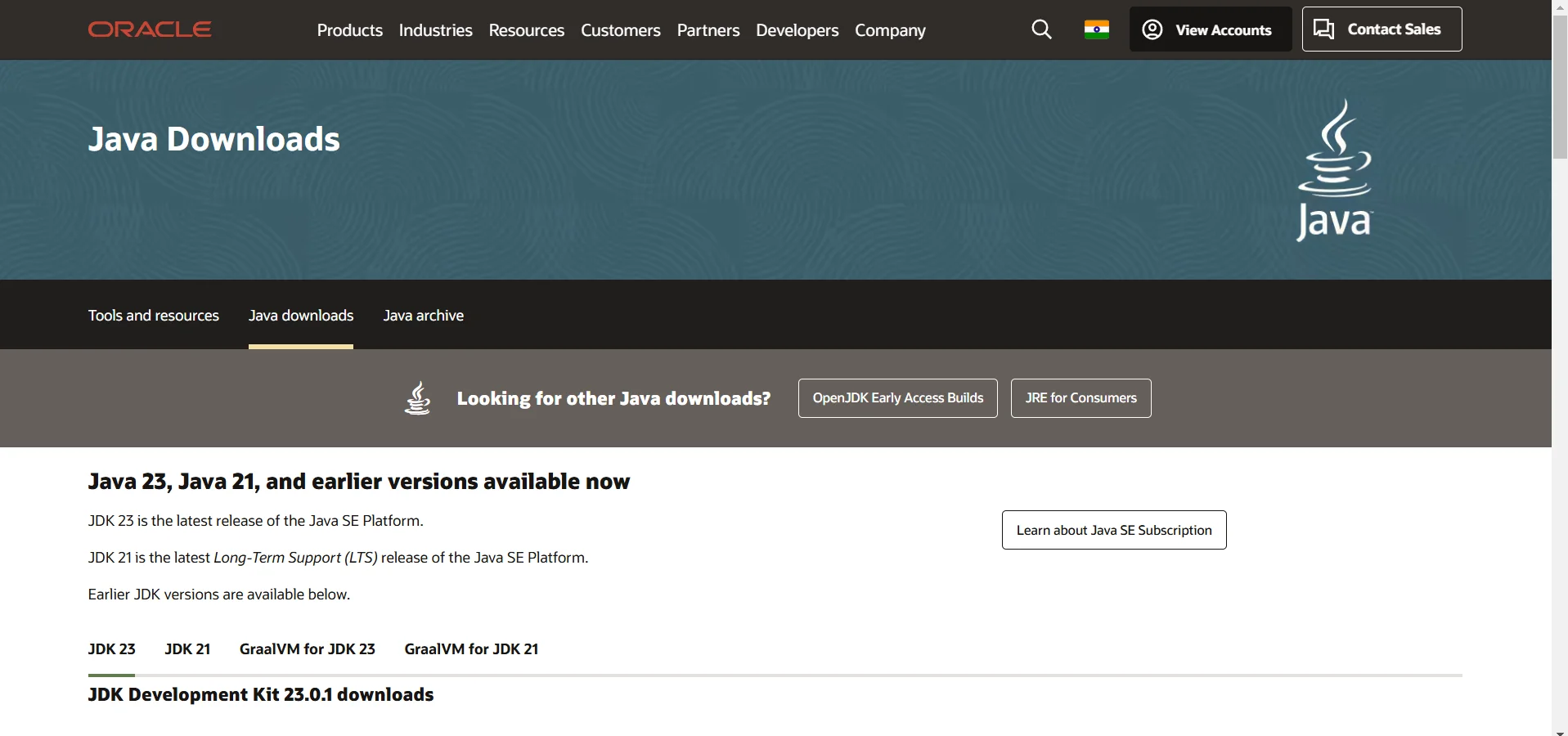
- Step 1: Go to the official handling website of the Java programming language, which is Oracle, and click the download section to select the version suitable for your device.
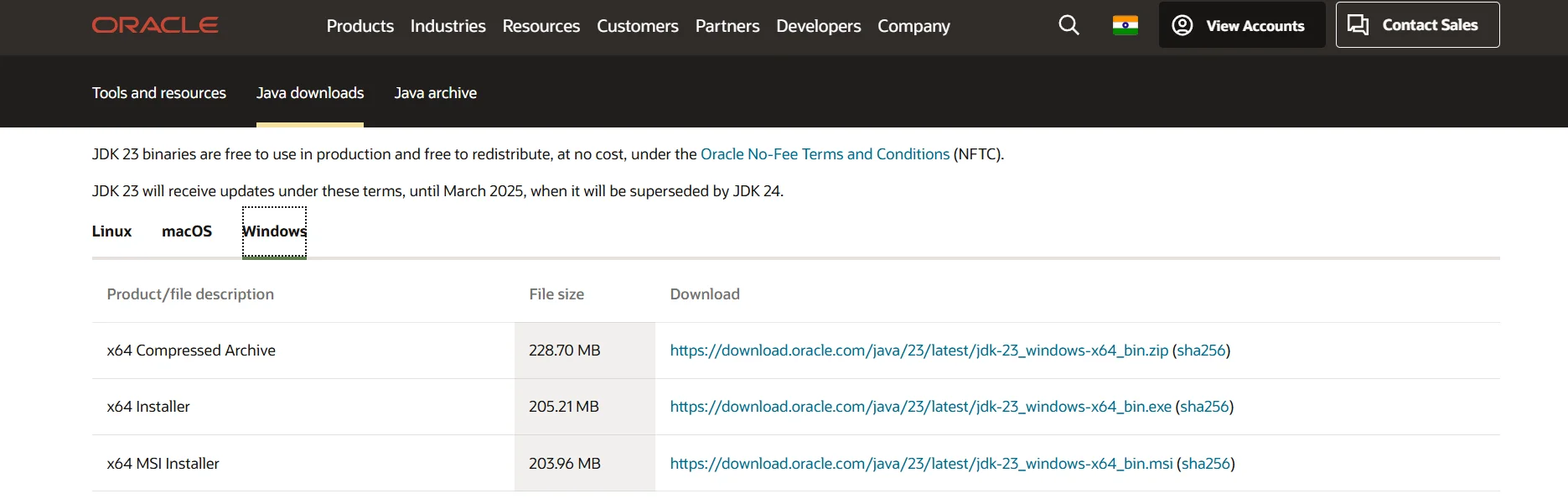
- Step 2: Select a version suitable for your Windows Operating System. Download the “Windows x64 installer” version if your Windows supports it. You can check it quickly on your computer about the section of your device. Meanwhile, let the downloading complete.
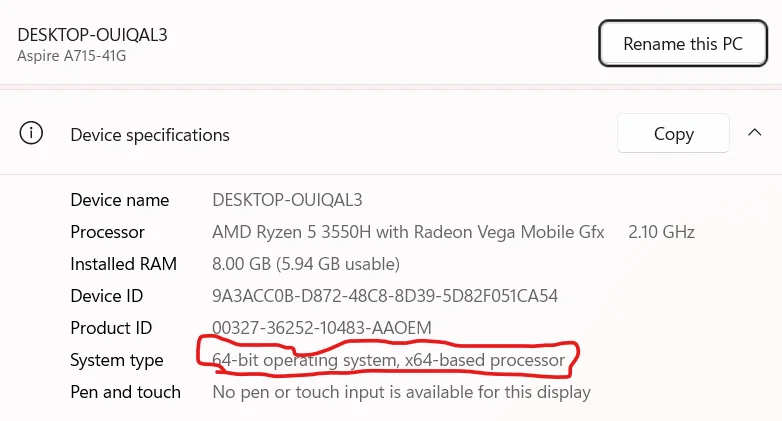

- Step 3: After the download is complete, you have to extract files from the Zip folder and click on the next. A window will appear showing the location of the file on your system.
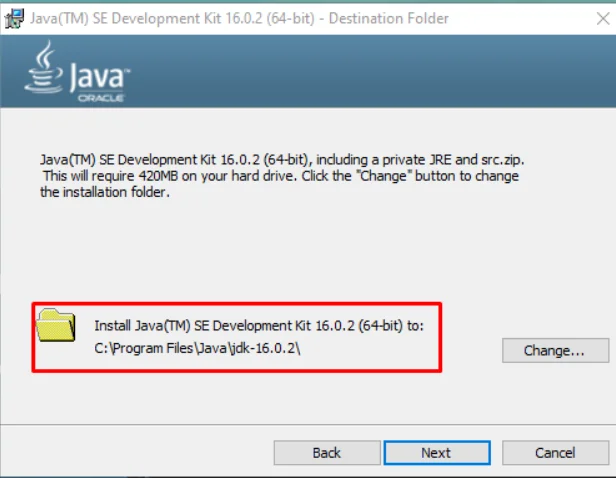
- Step 4: Copy the default path. If you want to change the path, click on the next, and then the Java program setup will successfully be downloaded and installed on your system. Copy the folder location as given below.

- Step 5: After copying the file path, go to the settings option on your system and search for “Edit the system environment variables.” Once found, open it to change the path.
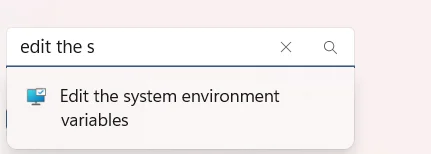
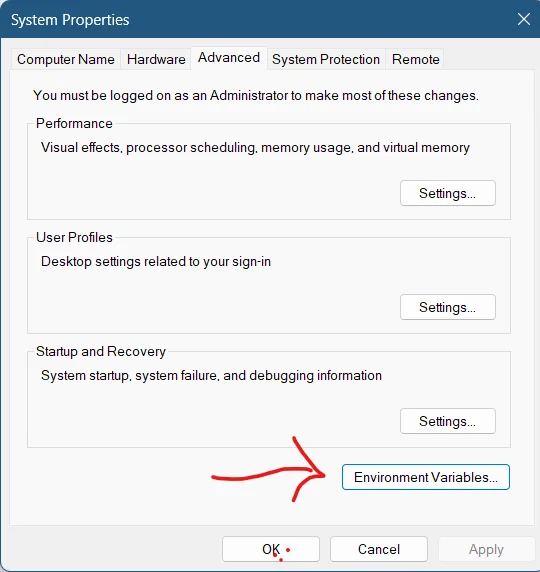
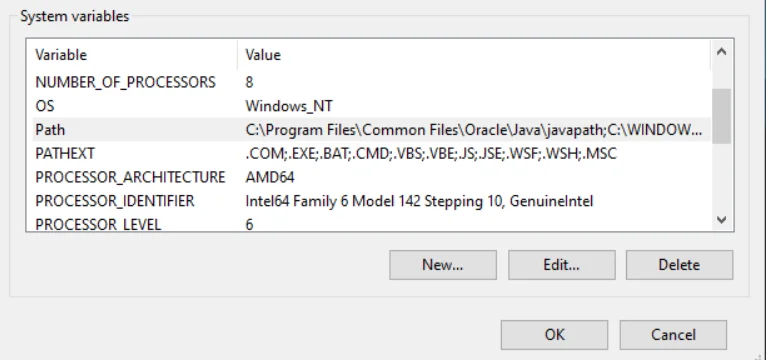
- Step 6: It will open the Environment variable menu where you have to change the path and click to add a new path. After pasting the directory, your Java folder is ready. Set the JAVA_HOME variable and click on the new button and OK.
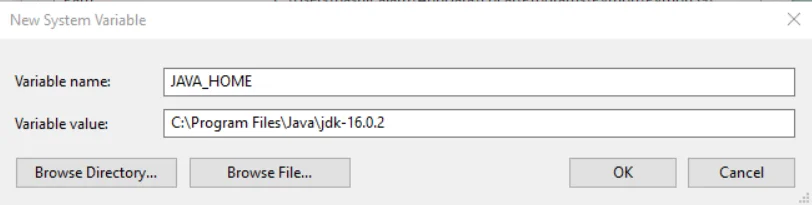
- Step 7: Now, you can check the version of Java installed on your system easily by going into the command prompt and typing the “java - –version”
Download And Install Java on Linux Device
Follow the steps to download and install Java programming language on your Linux device.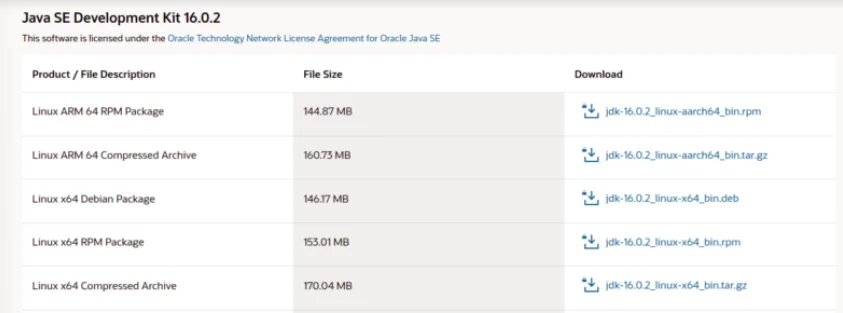
- Step 1: Install Java using the command line interface or go to the official website and download the Java setup manually. Select the version of your Linux os and start to download and install.

- Step 2: Check the download section and once downloaded click on Open with software install. You can find the variable version of Java language on the Ubuntu software and install it on your system.
- Step 3: Download and install Java on your Linux os by using the command line interface. In your command line interface on the Ubuntu software, start downloading the latest Java version on your device.
| sudo apt install openjdk-21-jdk |
- Step 4: You can now set up the Environment variable for JAVA_HOME. Add one of the following options in your .bashrc or .zshrc file.
| export JAVA_HOME=/usr/lib/jvm/java-21-openjdk export PATH=$JAVA_HOME/bin:$PATH |
- Step 5: Reload the file with the following command on CLI.
| source ~/.bashrc |
- Step 6: You can verify the complete installation using the code on CLI i,e. java –version. Check if the installed version is displayed on the screen.
Download And Install Java on macOS Device
If you are using a macOS operating system then follow the steps below to download and install Java on the mac system. Install the Java JDK file from the official Oracle website.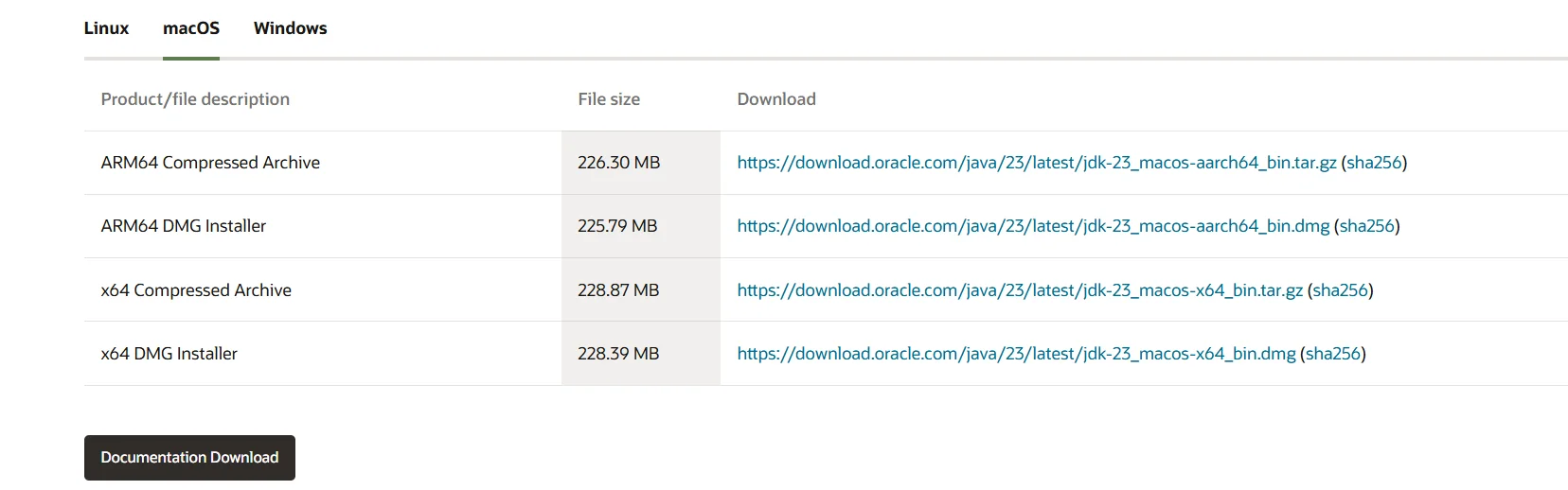
- Step 1: Open the terminal window on your macOS and type the command to install Java version 11 on your Mac. You can use either of the two options to download and install Java on your macOS.
- Step 2: Install the homebrew if not already installed on your device using the following command.
| /bin/bash -c "$(curl -fsSL https://raw.githubusercontent.com/Homebrew/install/HEAD/install.sh)" |
- Step 3: You can use Homebrew to install the OpenJDK on your device.
- Step 4: When the download is complete find the file of JDK in the download section of your device and double click to start the download and install Java on your Mac.
| brew install openjdk@12 |
Learn Programming on Java With PW Skills
Become proficient in Java programming language and build scalable Java applications with Decode Java DSA Course. Learn about the latest Java trends and tools to master application development. Get complete tutorials for Java fundamentals, API integration, and more. Get tutored by experienced mentors and build real-world projects with Java. Learn data structures in this self paced program only on pwskills.com



Download and Install Java FAQs
Q1. Can you download Java for free?
Ans: Yes, you can download and install the Java programming language on your system for free. The Java programming language is an open source software which is available for free on the internet.
Q2. What is Java JDK download?
Ans: The JDK has a private Java Virtual Machine which is important for the development of Java applications. It consists of the JRE (Java Runtime Environment (JRE), an interpreter, and an archiver on the device.
Q3. How do I verify that Java is installed correctly?
Ans: To download and install Java, open a terminal or command prompt and run the command i,e. java -version. It should display the installed Java version and confirm the installation.
Q4. Where can I download Java for macOS, Windows, or Linux?
Ans: You can download Java from the official Oracle JDK website. For open-source alternatives, OpenJDK is available at openjdk.org or via package managers like Homebrew (macOS), apt (Linux), or yum (Linux).


Talk to a counsellorHave doubts? Our support team will be happy to assist you!



Get Free Counselling Today
and Clear up all your Doubts
Talk to Our Counsellor just by filling out the form.
Join 15 Million students on the app today!
 Live & recorded classes available at easeDashboard for progress trackingLakhs of practice questions

