How Full Stack Development with AI Course Builds Responsive UI development Skills From Scratch
 Hardik Gupta21 Oct, 2026
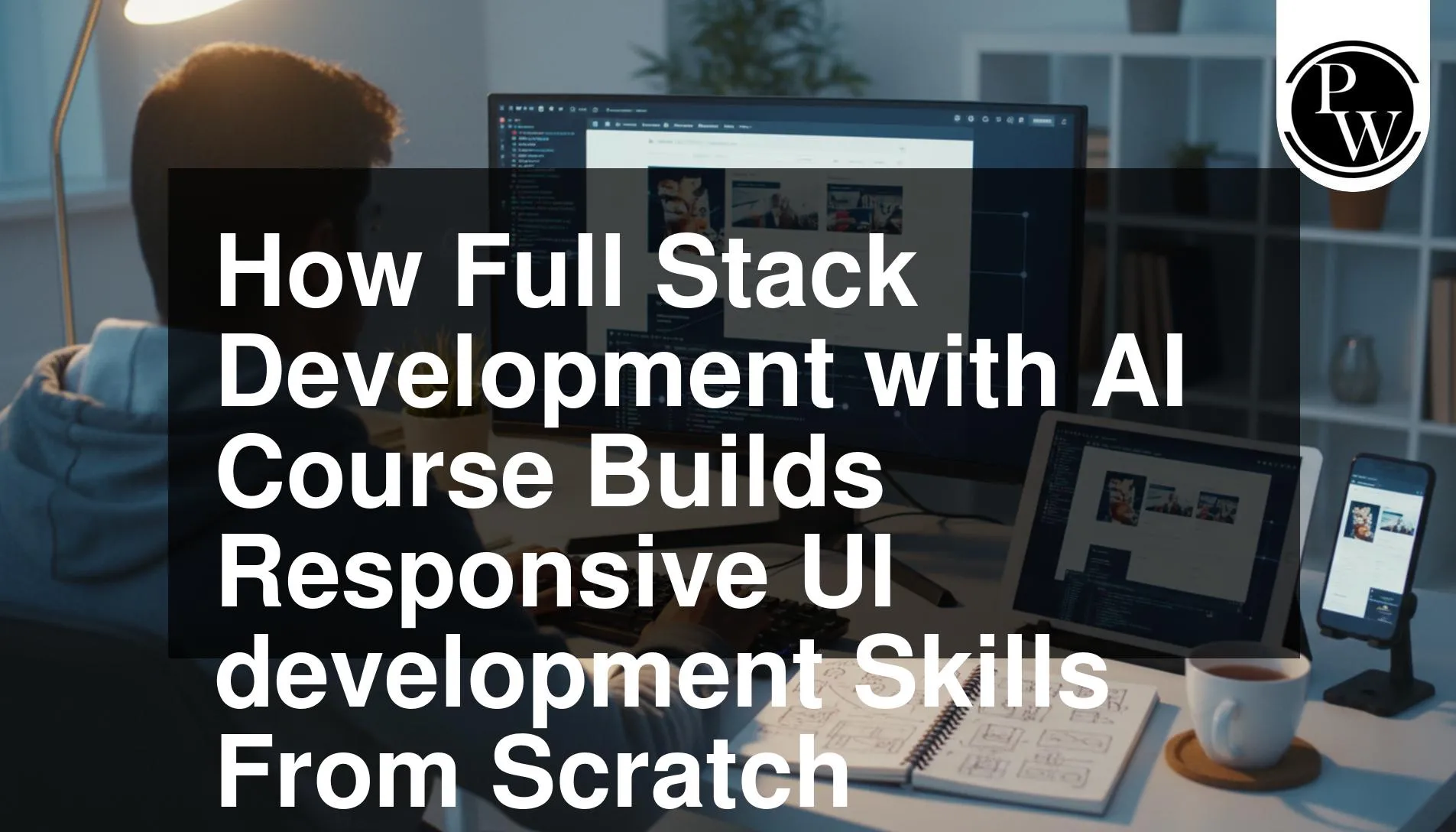
A website may look good on a laptop but become difficult to use on a mobile phone. Text may become too small, buttons may overlap, and images may extend beyond the screen. These problems can make it harder for visitors to read content or complete tasks.
Responsive UI development helps prevent these issues. It focuses on creating interfaces that adjust to different screen sizes and remain easy to use. Beginners can learn this skill by understanding how web pages are structured, how layouts behave, and how to test their designs.
What is Responsive UI Development?
Responsive UI development is the process of building user interfaces that adapt to the available screen space. Instead of creating a separate website for every device, developers use flexible layouts and suitable styling rules to support different screen sizes.
For example, a product page may display three product cards in one row on a desktop. On a smaller phone, those cards may appear in a single column so users can read the product details without horizontal scrolling.
A responsive interface should also consider more than screen width. Buttons need enough space to tap, text should remain readable, and navigation should work with touch as well as a mouse.
Beginners should understand these main principles:
-
Flexible layouts: Allow page elements to use the available space.
-
Responsive images: Prevent images from overflowing their containers.
-
Media queries: Apply different CSS rules when certain screen conditions are met.
-
Readable text: Choose suitable font sizes and spacing for different devices.
-
Usable controls: Make buttons, menus, and forms easy to operate.
These principles help developers create pages that work across a range of devices without making the interface difficult to use.
How HTML and CSS Build the Foundation for Responsive UI Development?
HTML and CSS are the starting points for building a web interface. HTML defines the content and structure of a page, while CSS controls its appearance and layout.
A beginner first learns how to organise headings, paragraphs, images, links, and forms. Semantic HTML elements also help give page content a clear meaning.
CSS then introduces properties for colours, spacing, typography, borders, and alignment. Learners can begin with simple layouts before exploring techniques that help pages adapt to different screen sizes.
Important skills to practise include:
-
The CSS box model: Understand how content, padding, borders, and margins affect element size.
-
Flexbox: Arrange items in a row or column and control their alignment.
-
CSS Grid: Create layouts with rows and columns.
-
Relative sizing: Use suitable percentages and flexible units when fixed dimensions are not appropriate.
-
Media queries: Change layout rules when the screen reaches a chosen breakpoint.
-
Image sizing: Keep images within their containers while preserving their proportions.
For example, a learner can build a profile card with an image, a name, and a short description. The card can then be adjusted so that its content fits a narrow phone screen and spreads out more comfortably on a larger display.
Small exercises like this help learners understand how individual CSS properties affect the full layout.
How to Practise Responsive UI Development Through Real Projects?
Practical projects allow learners to apply styling rules to complete pages rather than isolated elements. They also help students discover problems that may not appear in small examples.
A useful starting point is a simple landing page with a heading, an image, a short description, and a call-to-action button. Once the desktop version works, the learner can adjust the layout for smaller screens.
As skills improve, projects can include more sections and interactive elements.
Project ideas for practising responsive layouts include:
-
Restaurant homepage: Arrange menu categories, food images, and navigation links for different screen sizes.
-
Personal portfolio: Create project cards and a contact section that work on mobile and desktop.
-
Product listing page: Adjust the number of product columns based on available space.
-
Admin dashboard: Make tables, charts, filters, and navigation easier to use on smaller displays.
-
Video browsing page: Organise video thumbnails, titles, and categories into a flexible grid.
When working on a project, test more than the first page view. Open menus, enter text in forms, check image sizes, and scroll through the entire page.
A project is not responsive simply because its homepage fits a mobile screen. Every important section and interaction should be checked.
How React Helps Build Reusable Responsive UI Development Interfaces?
Once learners understand basic HTML and CSS, they can explore React to build interfaces from reusable components.
A component represents a part of the user interface, such as a navigation bar, product card, search box, or footer. Reusing components makes it easier to maintain a consistent design across different pages.
React does not automatically make an application responsive. Developers still need to write appropriate CSS, choose suitable layout rules, and test the results.
A Full Stack Development with AI Course may introduce React components, props, and state as part of its frontend lessons. Depending on the syllabus, learners may also study Next.js for additional application features.
For responsive interface work, students can practise:
-
Creating reusable components for repeated page elements.
-
Using props to display different content in the same component.
-
Managing state for interactive menus and filters.
-
Applying CSS classes to control layout and appearance.
-
Checking that components behave correctly at different screen sizes.
For example, a reusable navigation component can show a full menu on a wide screen and use a compact menu on a narrow screen. The developer must ensure that both versions are easy to navigate and work correctly.
How AI Coding Tools Can Support Responsive UI Development?
AI coding tools can help learners explore CSS properties, understand unfamiliar code, and investigate layout problems. They can be useful when a page looks different from what the developer expected.
For example, a learner might ask an AI assistant why a card extends beyond its container or how to create a layout that changes from two columns to one. The assistant may suggest CSS changes and explain how they work.
However, AI-generated code should always be checked. A suggested fix may solve one screen-size problem while creating another.
Useful ways to practise with AI include:
-
Asking for explanations of unfamiliar CSS properties.
-
Requesting examples of Flexbox or Grid layouts.
-
Investigating why an element overflows its container.
-
Reviewing repeated CSS rules and possible improvements.
-
Generating ideas for responsive test cases.
-
Asking for suggestions to improve keyboard navigation or accessible labels.
Learners should make one change at a time and test the result. This helps them understand which rule fixed the problem.
AI tools are most useful when they support learning and experimentation rather than replacing the need to understand HTML, CSS, and JavaScript.
How to Test Responsive UI Development Across Different Screens?
A layout may work at one screen width but break at another. Testing helps developers identify these problems before sharing or deploying a project.
Start by checking the page at a wide desktop size, a medium tablet size, and a narrow mobile size. Then resize the browser gradually to see whether the layout changes smoothly.
Browser developer tools often include device emulation features that help developers inspect layouts at different viewport sizes. Testing on actual devices can also reveal touch and usability issues that may not be obvious in an emulator.
Use this checklist during testing:
-
Check for unwanted horizontal scrolling.
-
Make sure headings and paragraphs remain readable.
-
Confirm that images do not stretch or overflow.
-
Test menus, buttons, links, and form fields.
-
Check that content does not overlap.
-
Verify that keyboard navigation works where needed.
-
Review spacing and alignment at different widths.
Choose breakpoints based on when the content needs a layout change, rather than relying only on the names of common devices. A flexible design should respond to the space available to it.




FAQ
What is responsive UI development?
Can beginners learn responsive UI development from scratch?
Does React automatically make a website responsive?
How can AI help with responsive UI development?






Get Free Counselling Today
and Clear up all your Doubts
 Live & recorded classes available at easeDashboard for progress trackingLakhs of practice questions