
Learn Figma in 2025 – Useful Guide to Master UI/UX Design
 Varun Saharawat30 Oct, 2025
Design skills are increasingly seen as a form of art that everyone must engage in. You want to stand out digitally. You can become a UI/UX designer or own your first app. College projects don't have to look as if they came out of a cardboard box. Take away Figma, and that dream becomes possible.
Figma is a free design tool stored online in the cloud and it is perfect for students. It is very lightweight and easy for beginners to get started with using it. It has become the standard design tool among tech companies like Google, Spotify, and Airbnb. The best feature of Figma is that you can design on any device, anywhere around the world, without using expensive software.
At this end of the guide, you have already figured out how to Learn Figma, how to use it efficiently along with your skills to get career opportunities in design.
Why Learn Figma?
Yeah, learning Figma is one of the most brilliant things that will happen in 2025, especially to students. Here are the reasons why:- Free for Students – Signup with an educational email and premium features are free.
- Easy Collaboration – Work on projects with classmates in real-time.
- Industry Standard – An expected requirement from employers of designers.
- Benefits – For websites, apps, presentations, infographics, or even resumes.
How Figma Helps Designers
Figma has become the spine of modern UI/UX design because it solves several issues that many designers are facing:Real-Time Collaboration No more will many people edit the same design without all the chaos of file sharing.
Cross-Platform Access Use it on Windows, Mac, Linux, or even in your browser.
Component Reuse Save time by using from already designed elements instead of creating one from scratch.
Version History Anytime, with just a few clicks, you can access earlier versions of your design.
Easy Feedback Process Clients and teammates can add comments directly to designs.
Step-by-Step Beginner Tutorial for Figma
Beginner Figma Tutorial To Follow Step By Step: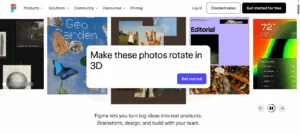
Step 1: Get Yourself a Figma Account
- Log into figma.com
- Click Sign up (use your email or Google account)
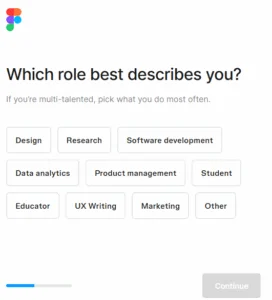
- Start with exploring the website and choosing roles and more as per your need.
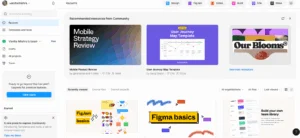
Step 2: Learn the Figma interface
When you open Figma, you can see:- Toolbar – consist selection, drawing, and adding shapes/text.
- Layers Panel – lists all objects in your file.
- Properties Panel – allows you to adjust size, color, fonts, etc.
- Canvas – the primary area where you carry out your designs.
Step 3: Begin With a New File
- 'the file has been linked through "New Design File".'
- Renaming it (let's say, My First UI Design).
- So that your work is organized and really easy to find later.
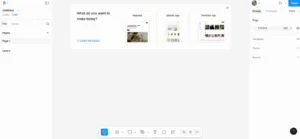
Step 4: Create Your First Frame (Artboard):
- Press F on your keyboard or click the Frame tool in the toolbar.
- Select a device size, such as iPhone 14 Pro or Desktop.
- Frames will be like the 'pages' in your design.
Step 5: Add Shapes and Text
- Use the Rectangle Tool (R) or Circle Tool (O) to draw shapes.
- Press T for text.
- Experiment with changing colors, fonts, and borders in the Properties Panel.
Step 6: Enter into the World of Components
- Components play a vital role in letting you reuse elements like buttons without the need to have redrawing activity in frustration.
- Select your button → Right-click → Create Component. Now, any change made in one of the buttons gets updated in all copies available.
Step 7: Utilizing Auto Layout (Game Changer)
- Select multiple elements → Right-click → Add Auto Layout.
- This makes it possible to clustering your items neatly with great responsiveness in their spacing.
Step 8: Real-time Collaboration
- Share your file with them using Share located on the top-right of the screen.
- Depending on your settings, team members will comment, edit, or simply view.
Step 9: Prototype Your Design
- Switch into Prototype Mode.
- Linking screens is easy; just drag the blue arrows between the elements.
- Press play to preview just like a real app.
Step 10: Export Your Work
- Select the desired element/frame→right-click-→Export.
- Then choose between PNG, JPG, or PDF.
- You can share it with friends or even attach it in one of your project submissions.
What is Figma AI?
Figma AI is Figma's artificial intelligence-powered enhancement that helps designers work much more smartly rather than actually harder. It can suggest layouts, auto-generate design components, and even create text or icons instantly. Think of it as taking the form of a design assistant right within your workspace-never sleeps, never complains, and always delivers.

What is Figma AI Used For?
This is not just for fancy beautiful stuff. Here is how people actually use it:- Generate designs now-no need to start from scratch. Just say what you need, and Figma AI will make the base design for you.
- Speeding up the repetitive work-resizing, renaming layers, and spacing adjustment-all done in seconds with AI.
- Enhance creativity
- Collaboration in teams: AI-generated suggestions integrate multiple designers working under the same project without style clashes.
Learn Figma AI: why it is worth your time
Whether you're a beginner with Figma or supercharging that Figma skill to a pro version, learning Figma AI can:- Saves you time: it automates the design work you always do over and over so that time can be spent creating instead.
- Enhances your portfolio: Gives prospective employers a view of your familiarity with the best tools in the industry.
- Creates new job openings: competencies considered are increasingly AI-based nowadays.
How to Learn Figma AI as a Beginner
Here's how you can learn Figma AI in one go:- Learn the basics of Figma first: Understand frames, components, and prototyping.
- Explore the features of Figma AI: Experiment with the AI panel for exploring auto-layouts, text generation, and quick edits.
- Work on small projects: Try building basic mobile app screens or landing pages through practice.
- Join communities online: You will often find AI tips on popular Figma Discord servers, Reddit groups, and design forums.
How Figma AI Benefits Designer and Product Manager Professionals
For Designers:
- Transform vague concepts into functioning designs in minutes.
- Style consistency through different projects.
- Creative diversifications, quickly accessed and explored.
For Product Managers:
- More rapid prototyping gets concepts tested sooner.
- Enhances communication among teams using quick visuals mockups.
- Collects design feedbacks within times shorter than long ones.
How to Use Figma Efficiently
Here are some pro tips to Learn Figma faster and work like a pro:-
Start with Basics
- Start with shapes, frames, text, and layers before graduating to advanced tools.
- Check the Figma Learning Center and also go through YouTube tutorials.
-
Use Components & Styles
- Make a button, icon, and layout reusable.
- Make use of Styles for colors, fonts, and spacing.
-
Learn Keyboard Shortcuts
- T for text
- R for rectangle
- Shift + A for auto-layout
-
Check out Figma Plugins
- makes everything easier for icons
- provides free images
- uses placeholder text
-
Learn by Doing Actual Projects
- Redesign your favorite app.
- Design a personal portfolio site.
Step-by-Step Learning Timeline for Students
| Week | Focus Area | What to Learn |
| 1 | Basics | Tools, shapes, text, colors |
| 2 | Components | Auto-layout, reusable elements |
| 3 | UI/UX | Wireframes, user flows |
| 4 | Prototyping | Linking screens, animations |
| 5 | Plugins | Productivity & asset libraries |
| 6 | Portfolio | Create 2–3 real-world projects |
Figma for Beginners – Why Practice Beats Theory?
Learning Figma is only practicing theory; without doing, it becomes meaningless because looking at an app's design screens is valuable these days during design challenges, even in getting feedback on your work. You will see how attractive practical works differ from theoretical works since results can be realized at once, which makes them much more interesting and motivating.Realistic Timeline to Learn Figma
Here's a realistic overview:- Casual Learners: 2-3 months (a few hours weekly)
- Students who practice daily: 1-1.5 months
- Full-time Learners: 3-4 weeks
 Join Our UI/UX Telegram Channel
 Join Our UI/UX WhatsApp Channel
Jobs After Learning Figma- Career Paths and Opportunities
Learning Figma opens the door to many creative and in-demand careers, such as:- UI/UX Designer – Create user experiences that are clear for apps and websites.
- Product Designer – Help developers understand their digital products.
- Graphic Designer – This can be anything from branding to marketing materials.
- Freelance Designer – Providing design services to startups and businesses.
- Prototype Specialist – Develop virtual prototypes in response to product pitches.
Industry Demand- the logic behind Learning Figma is a Wise Career Decision
In 2025, digital design will not be restricted to technology companies but will expand to the whole business spectrum-from e-commerce stores to their health-care apps. Each of them now needs superb designs, and this is the tool that has been set up as an industry standard for such works. Reports state that UI/UX design has been placed in the top 10 list of highest-demand tech jobs, and carrying that out by knowing Figma will further boost chances for candidates to get interview calls.Projects You Can Create After Learning Figma
You would be able to design the following when you learn Figma:- The whole e-commerce application design
- Interactive landing pages for businesses
- CV and portfolio templates
- Digital posters and banners
- A personal brand kit, colors, logos, and typography.
Common Mistakes to Avoid
- Just Watching Tutorials: Hands-on experience is necessary for growth.
- Avoiding Basics: No jumping to advanced features too soon.
- Don't Ignore Feedback: No design is improved without critique.
- Don't Avoid Exploring Plugins: Saves a vast number of hours of work.
Learn Figma Faster through Smart Learning Hacks
- Speed up your workflow using keyboard shortcuts.
- Join Figma Community to download free UI kits.
- Follow UI/UX designers on LinkedIn or Dribbble for inspiration.
- Break down bigger projects into smaller tasks.
Why Now is the Best Time to Learn Figma
Among all the rapidly growing fields, UI/UX design is the fastest: Learn Figma today and open the doors for yourself into the tech, startups, and creative industries of tomorrow. Free to start, beginner-friendly, and versatile enough for any design dream you may have-indeed.How Learning Figma Helps Product Managers and Designers Excel
Unlike most software tools, when you learn Figma, you will unlock a better means of communication, collaboration, and creation. Whether a product manager, an information designer or front-end developer, Figma gives everybody the same touch, all on the canvas.-
For Product Managers
- The world of design clashes with product implementation if product managers get to learn Figma.
- More Collaboration-It minimizes internal communications by providing a direct feedback mechanism, tagging a member, and suggesting edits in real-time.
- Better Communication-Shorter associations can be formed around instant prototypes or wireframes instead of verbose documents.
- Higher speed decision makes such design is capable of permitting new feature/idea when clicking the sample design rather than digesting lengthy documents.
- In product management, Figma reduces the chances of "lost-in-translation" moments wherein ideas are essentially filtered down from design to development and get lost in the middle.
-
For Designers
- Designers propel themselves forward in speed, creativity, and team-oriented objectives.
- Teamwork live – Several designers can be present in the same file and collaboratively work without an issue of version control.
- Creation and Recycling of Design System-The shared design system is composed of components that may be reused extensively. Buttons, icons, and headers may be designed once and used in various projects, hence saving many working hours on the repeated work cycle.
- Client-Friendly Presentations-Designers may present interactive prototypes rather than still images to give their clients a "wow" feeling!
-
Cross-Functional Collaboration
Figma vs Other Design Tools – Comparison Table
| Feature | Figma | Sketch | Adobe XD | Canva |
| Platform | Cloud-based, works on any device with browser | Mac-only (requires macOS) | Windows & Mac | Web & App |
| Collaboration | Real-time, unlimited editors on same file | Limited via third-party tools | Good, but not as fast as Figma | Real-time, but basic design focus |
| Prototyping | Built-in, interactive flows | Requires plugins | Built-in | Limited |
| Plugins & Widgets | Huge community marketplace | Large, but Mac-only | Moderate | Limited |
| Ease of Use for Beginners | Very beginner-friendly | Requires more learning curve | Moderate | Very easy |
| Best For | UI/UX, Product Design, Collaboration | Professional Mac-based designers | UI/UX on desktop apps | Quick marketing/social graphics |
| Price | Free plan + affordable paid tiers | Paid only | Free + paid | Free + paid |
Resources to Learn Figma for Free
- Official Organization Figma Tutorials - Free, beginner-friendly.
- Channels on YouTube - Flux Academy, DesignCode, AJ&Smart
- Communities for Students - Become a UI/UX design group member on Discord
Learn Figma: Choosing a Suitable Plan According to Your Needs
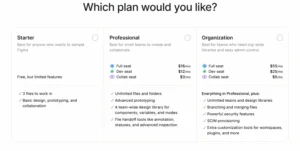
Once you start with learning Figma, one of the first questions is: Which plan should one go for? Figma has three pricing brackets which target different kinds of users, from students just messing about with design all the way to organizations with more complex needs.1. Starter Plan (Free)
Best for someone who wants to sample Figma without having to pay.- Free forever (you can use by loging with different mail IDs), but limited features. Can work on 3 files max. Includes basic design, prototyping, and collaboration tools. Ideal for students, freelancers, or novices-just starting the design journey.
2. Professional Plan($16/month Full Seat)
- Great for small teams willing to work and collaborate with an enhanced focus.
- No limit on files and folders-works with no holds barred.
- Advanced prototyping for smoother user flow creation.
- Access the team-wide design library with components, variables, and modes.
- File hand-off tools such as annotations, status, and advanced inspection for developers.
- Good for college projects or small start-up teams or professional designers working with multiple clients.
3. Organization Plan($55/month Full Seat)
- Best suitable for larger teams and enterprises that require advanced controls and security.
- Everything in Professional, i.e.
- Unlimited teams and design libraries.
- Branch and merge files for safe version control.
- Advanced security features and SCIM provisioning.
- Customization for tools and workspace, plugins, and the likes.
- Ideal for an established company or institution where several large-scale design projects are accommodated.
Tip for the Students: If you're just starting to learn Figma, the Starter Plan is more than enough. You can always upgrade to Professional once your projects grow in complexity.
Future Scope of Figma Skills
The demand for designers is expected to grow 23%.AI and automation are going to change the face of tech between now and 2031, with human-centered design becoming more demanding. So if you Learn Figma now, one will secure a place ahead of many graduates on the job market.Also Read:
- Interaction Designer: The Creative Force Behind Intuitive Digital Experiences
- UI UX Design Roadmap 2025: Your Step-by-Step Guide to a Creative Career
- Motion UI: What Is It, Why It Matters & Stunning Motion UI Design Examples
- What Is UX Pilot: Features, Pricing, and Why It Is Important For Designers In 2025
Learn Figma With UI/UX Design from PW Skills
If you are into design, The PW Skills UI UX course is your fast track to become a master. One will learn Figma from the scratch to real projects and get expert guidance. With a live helpdesk, build a career portfolio that grabs every recruiter's attention. It's a jumpstart for a serious learner; enroll now and open your fortune.Why Learn Figma Right Now?
UI/UX design has hit one of the fastest-growing career paths by 2025. By knowing Figma now, you are self-heaping opportunities in tech startups and the creative world since the app is also free to start, easy to learn, and has lots of features to design anything you can think.



Learn Figma FAQs
Is Figma free for students?
Does Figma need to run on top-notch laptops?
How many days would it take to learn how to operate Figma?





Get Free Counselling Today
and Clear up all your Doubts
 Live & recorded classes available at easeDashboard for progress trackingLakhs of practice questions

