
Rstudio: Your Powerful Data Science Workbench and Environment (2025)
RStudio is an integrated development environment (IDE) for the R programming language. It provides tools for writing code, visualizing data, and managing projects, making data analysis and reporting easier and more efficient.
 Varun Saharawat30 Oct, 2025
Now that you understand what R Programming for Data Science is, the next crucial step for you would be to set up your working environment. You would now need two things-the R language itself and RStudio, which is the most proficient way of writing and running your R codes. Lets dive in towards the content for data science using r programming notes.
What is Rstudio?
In R for data Science you can run R code in the basic R Console; however, RStudio is the Integrated Development Environment (IDE) where professional data scientists do their work.- RStudio provides you with a user-friendly, four-panel interface: a code editor to write scripts, a console to run commands, a pane to view your objects, and a pane for viewing your plots.
- It's very easy for coding, debugging, and organizing your data science text-only projects into R programming notes.
Why Two Installations?
So, looking at it this way- R (The Engine): This is the core programming language; it is the statistical brain. It does all calculations, modeling, and data manipulation. This has to be installed first. RStudio (The Workbench): This is the IDE that gives you a user-friendly window, code editor, file browser, and plot viewer. It makes writing data science using R programming notes and code much easier than using the plain R console.Why RStudio Matters
R can be powerful but boring to use: it operates in a bare console. RStudio, however, provides a complete IDE in which coding seems organized, visual, and easy for a beginner. It helps with project management, variable tracking, data visualization, and code debugging. RStudio is like a typewriter being put against a modern laptop for anyone learning data science: same writing but a whole new world of ease in practice.Table: R vs RStudio
| Feature | R (The Engine) | RStudio (The Workbench) |
| Purpose | Core programming language and statistics engine | Integrated Development Environment (IDE) for R |
| Functionality | Performs calculations, modeling, and data manipulation | Provides code editor, file browser, plots, and debugging tools |
| Installation | Must be installed first | Installed after R to serve as an interface |
| User Experience | Basic command-line console | User-friendly, with multiple panes for coding, plots, and files |
| Who Uses It | Underlying tool used by all R projects | Preferred by data scientists for daily work |
Installation of RStudio: A Step-by-Step Guide
Setting up your R Programming for Data Science environment involves two main steps: install the R language (the engine), and install RStudio (the workbench) as discussed in above heading.Step 1: Installation of the R Language (The Engine)
Go To CRAN: Head to the R Project official website. LINK
- Download: Click the Download R link and choose any of the nearby CRAN Mirrors.
- Choose Appropriate: Click the link that corresponds to your OS (Windows, Mac, or Linux).
- Download and Run: Download the base installer file (such as R-4.x.x-win.exe) and run the installer. Accept all suggested default settings.
- Verification: R is installed successfully once the setup is complete. (You won't need to open the basic R Console for any purposes.)
Step 2: Installation of RStudio Desktop (The Workbench)
- Go To RStudio: Head to the RStudio website. LINK
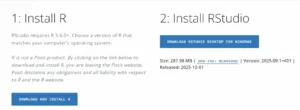
- Free Version: Scroll down and select the RStudio Desktop (Open Source License) option.
- Download and Run: Download the recommended installer file for your operating system and run it. Accept all default settings.
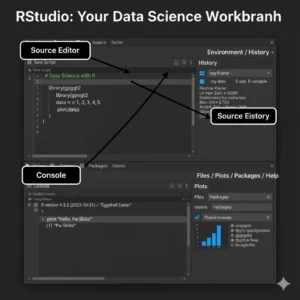
- Launch RStudio: Now, launch RStudio. After the installation steps are completed, the R Studio interface looks like:
 Step 3: Verification
Console Check: Look at the bottom left pane (the Console) where it should display a message indicating which version of R it is running, e.g., "R version 4.4.1..."
Run Test Command: To make sure the environment is working, type in the Console:
print("Hello, Pw Skills!")
You are now set to start coding in R programming for data science.
Step 3: Verification
Console Check: Look at the bottom left pane (the Console) where it should display a message indicating which version of R it is running, e.g., "R version 4.4.1..."
Run Test Command: To make sure the environment is working, type in the Console:
print("Hello, Pw Skills!")
You are now set to start coding in R programming for data science.
Table: Four Panes of RStudio
| Pane Location | Pane Name | Purpose | Example Use Case |
| Top Left | Source Editor | Write and save R scripts (your reusable code files) | Create and save a data cleaning script |
| Bottom Left | Console | Type and run R commands, see immediate output | Run 2+2 or check summary(dataset) |
| Top Right | Environment/History | Track all variables, data objects, and past commands | View imported dataset or function list |
| Bottom Right | Multi-Function Pane (Files/Plots/Packages/Help/Viewer) | Manage files, visualize plots, install packages, get help | Plot with ggplot2 or install tidyverse |
Navigating the RStudio IDE
The RStudio environment provides an interface that is divided into four panes, and each of these plays an important role in R programming for data science: RStudio screen is divided into four panes really important for R Programming for Data Science: Top Left: Source Editor (Main Area to Code)- That is where you write and save your reusable R scripts (code files).
- This feeds into properly organized and reproducible analyses.
- This is the command line where you type in R code and straight-away observe its text output.
- Think of this type of direct communication with the R"engine".
- Environment Tab: Shows all the variables and data objects you've created during your current session.
- History Tab: Saved the list of every command that you've run, which is great for reviewing your data science using R programming notes.
- Bottom Right: Multi-Function (The Toolkit)
- Plots Tab: All your graphs and visualizations are shown.
- Packages Tab: Your installed libraries are managed; new ones can be installed.
- Files Tab: Browse and manage your project folders.
- Help Tab: Instant documentation and support for any R function.
- Viewer Tab: View local web content generated within R (for example, Shiny apps).
Key Features of RStudio
RStudio is much more than a code editor; it is a very user-friendly interface equipped with tools that are created to facilitate the workflow of a data scientist:- Easily Accessible: The Environment pane gives easy access to all imported data and newly created objects (variables, functions, etc.).
- Smart Coding Help: Features such as code autocompletion assist you in faster code writing with lesser typos, thus speeding up your R for data science endeavors.
- Project Organization: The ability to organize and share your work more effectively with colleagues through Projects.
- Instant Help: Systematic help and documentation for any R functions are found in the Help tab.
- Tracking and Review: Easy terminal/console switching and tracking of operational history helps follow through on your analytic steps.
RStudio Setup: Getting Started Together
Having now installed the R language and RStudio IDE, we will look quickly at the steps to set it up. A proper setup will keep your R programming for data science work organized and reproducible.-
Setting Your Working Directory
Why it Matters:
If you don't set a working directory, R will save files to a random default location that will make them hard to find. We need to tell R where your project lives!How to Set It (Recommended Method):
It is best to make use of the Project Feature in RStudio.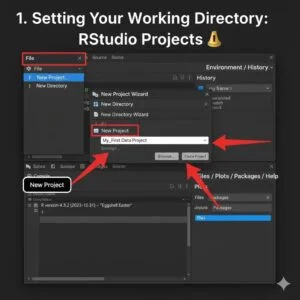
- Go to File → New Project... in the RStudio menu.
- Choose New Directory → New Project.
- Give your project a meaningful name (e.g., My_First_Data_Project) and choose the location on your computer where you want to save it.
-
Install Your First Packages
Step-by-step Package Installation:
In the RStudio Console (bottom left pane), use install.packages() command to install: # This command downloads the package from CRAN and installs it install.packages("ggplot2")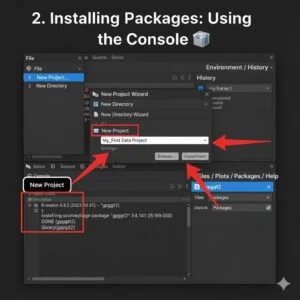 Loading Package with library() Function:
# This command loads the package into your current R session's memory
library(ggplot2)
Pro Tip: While you will have to run install.packages() one time only for every computer, you shall be required to run library() every time you start a new R session or R Project and wish to work with that package.
Loading Package with library() Function:
# This command loads the package into your current R session's memory
library(ggplot2)
Pro Tip: While you will have to run install.packages() one time only for every computer, you shall be required to run library() every time you start a new R session or R Project and wish to work with that package.
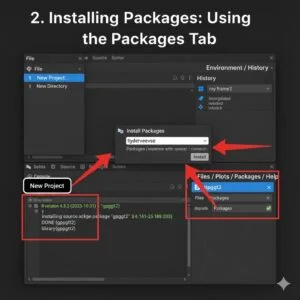 RStudio also interfaces to do installations:
Under the Packages tab of the bottom right pane:
RStudio also interfaces to do installations:
Under the Packages tab of the bottom right pane:
- Go to the Packages tab.
- Click the "Install" button.
- Type the name of the package (e.g., dplyr or tidyverse) and click "Install."
- To load it, you can simply check the box next to the package name in the list, or run the library() command in the console.
From the Setup into the Coding
You just went through the fundamentals of R Programming for Data Science. In this initial chapters, we have defined R, explained its significant role with Python, and most importantly, this was in order to view in detail how to establish your RStudio. You have built your engine and garage; now learn how to fly. Ready to turn setup to code?Get the full strength of R from PW Skills
The next step now is to achieve true mastery. Enroll into the course of PW Skills Data Science, which has well-structured data science using R programming notes. If you want to go beyond setup and dive deep into data science projects with R, structured learning platforms like PW Skills can give you industry-oriented practice.






FAQs
What is the difference between R and RStudio?
R is the programming language. In contrast, RStudio is the IDE that provides users with a better working environment for working within R.
Do I need to install both R and RStudio?
Yes. It is mandatory to install R (the language) first and then follow it by installing RStudio (the interface).
Is RStudio free to use?
RStudio offers an open-source free version intended for student and professional users.
Why is RStudio important in the life of a beginner?
It provides a user-friendly interface, a code editor, visualization, and tools that make learning and using R smoother.


Talk to a counsellorHave doubts? Our support team will be happy to assist you!



Get Free Counselling Today
and Clear up all your Doubts
Talk to Our Counsellor just by filling out the form.
Join 15 Million students on the app today!
 Live & recorded classes available at easeDashboard for progress trackingLakhs of practice questions

