Git Branching is a standalone feature in Git where you can easily develop features or fix bugs and even experiment with your code without disturbing the main version; this is something we call “Git Branching”. There are multiple ways we can use Git branching.
Here, we will learn how to create Git Branching and merging in a step-by-step way.
What Is Git Branching?
Git Branching is a process that allows developers to add a feature or fix a bug in the code, where they work with a copy of the code by creating branches without changing or modifying the existing version of the code. Git labels the commit you create with a SHA-1 hash, storing it as a snapshot of the files.
It also creates a pointer to the same commit where your main branch is present. Git branching is done to create a copy of the branch in an isolated environment where you test your code for the changes you need and then finally merge them into the main branch. The main branch is an entity that is the first branch on which you initialise a Git repository using the “git init” command.
Are Git Branching And Git Merging The Same?
Git branching and Merging are very much related, but are not the same, as Git branching is about creating independent lines when you want to add a feature or fix bugs in your project code.
When you create a branch, you tell Git that you want to work on this part of the code without affecting the main code base of the project. While Git branching is a process of combining all changes made in different branches in the project. When we implement the Git merge function git integrates the work from all branches and then adds them into the main branch.
Read More: Git Workflow Explained: Useful & Centralized, Branching, Forking & GitFlow (2025)
What To Keep Branching And Merging In Git?
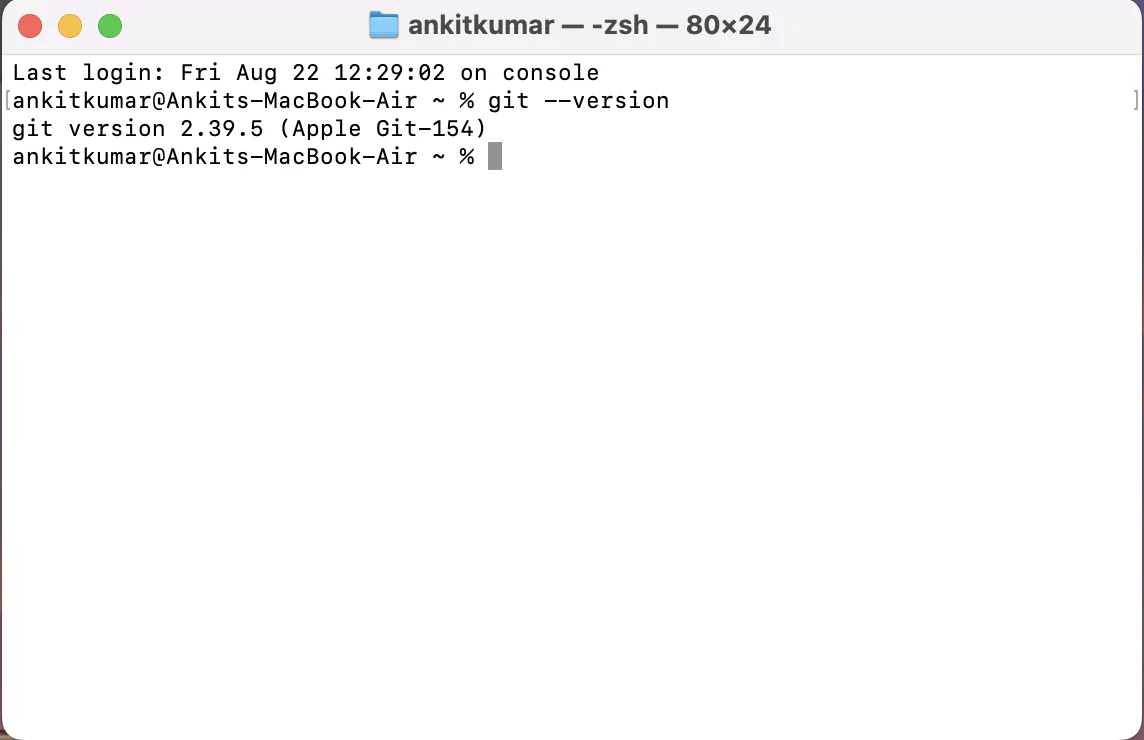
Before you start to commit Git Branch and Git Merge in your code base make sure you have git installed on your local system. To check whether or not you have Git installed, type the following command. If you get a version number in return, you have Git installed on your system.
However, if you do not have git installed on your system, it will not show you any version number.
Also, before you start with Git branching, you need to create a repository, which will have your main branch where you will start building your Git branch.
Read More: Why DevOps Is Important & Explore The Key Benefits
Step-by-Step Method to Make Git Branching?
Let us check some of the major methods to make Git branching below.
1. Set up Git
You can use Git with a package manager like Homebrew, which you can install for free on your device. After you set up your Git, make sure you provide your user name and password to keep a record of who is making changes in the code.
| git config --global user.name "YourGitHubUsername"
git config --global user.email "youremail@example.com" |
Place your user name and email in the command to add your profile. You can also check your email and name using the git command “git config --list,” and you will get the profile you are working with on Git.
2. Create a Repository
Now, you will have to start by creating the Git Repository. You can type the following commands given below to start a new repository or work on the existing version.
| cd ~/Documents/my-project # go into your project folder
git init # initialize Git repo
echo "Hello Git" > readme.txt
git add readme.txt
git commit -m "First commit" # save it in Git history |
You can create a sample file and add it in your project. You will see something like this below.
3. Check the Current Branching Status
Before starting to add a branch to your project, check whether the main branch is ready in your repository and whether there is any other branch already available, or if it is starting from scratch. Use the following command to check the current branch.
The *main shown here is the root branch in your repository, which is present there by default. Now, you can start git branching in your main repository.
Read More: Free Python Course 2025 – Google’s Zero-Cost Coding Bootcamp for Beginners
4. Start with Git Branching
You can start with branching in your main git code. Give your branch a name to start.
“feature-1” is the name of the branch given to the Git main.
5. Make Commits In Branch
You can start making commits in your Git branching either by adding new features or fixing bugs. The changes you make in your Git branch will not be reflected in your main branch until you merge them.
For example, let us type a simple message, “This is a new feature,” and display it on the screen.
- First, go to the “Git branch” where you want to make changes. If you want to make changes in your “feature-1”, then type the following command.
Output
Now, once you are on your branch feature-1, you can add it to your branch with git add.
| echo "This is a new feature" >> readme.txt
git add readme.txt
git commit -m "Added new feature content" |
Output
 Join Our Devops & Cloud Computing Telegram Channel
 Join Our Devops & Cloud Computing WhatsApp Channel
6. Go Back to Main Branch
Once you commit changes to your git branch, you have to go back to your main branch to start merging the changes made. Simply type the following command to go to the main branch.
Output
7. Git Merge
Now, you have to merge your Git branching “feature-1” in your main branch. Simply use the following command to make it possible.
8. Check the Overall Graph
You can see the complete graph to verify the history of changes made in the repository with a simple command given below.
| git log - - oneline - - graph - - all |
Git Branch Naming Strategies
The git branching strategies for naming are just simple conventions or guidelines that developers follow while naming their branches in a project. It depends on the type of project for which we are making the branch. For example, when we are working on a new feature or improving an existing one, we can keep the name with feature/ and a short name description.
- Try to use lowercase and hyphens when naming a Git branch.
- Adopt a habit of keeping short names but descriptive.
- You can give tracker IDs if available.
- Make sure you and your team follow the same git naming strategies to facilitate better communication and understanding.
1. Feature Branches
This git branching strategy for names is used when developing a new feature. Check the commonly used convention below.
| feature/<short-description> |
Check some examples related to the feature Git branching below.
| feature/login-auth
feature/shopping-cart |
2. Bug Fix Branches
This type of branch is used when fixing bugs in the codebase. Check the naming convention for the following type of git branching. You will need an additional “ticket ID” for bug fix branches.
| bugfix/<ticket-id>-<short-description> |
Check some examples related to the bug fix Git branching below.
| bugfix/123-button-alignment
bugfix/456-api-timeout |
3. Release Branches
When you are preparing a new release i,e. testing, polishing, and versioning.
Check some examples related to the Git branching below.
| release/1.0.0
release/2.1.5 |
Also Read:
- Lean Principles Introduction in DevOps
- DevSecOps Tools: 11 Best Platforms to Learn and Use in 2025
- DevOps Frameworks Explained: A Beginner's Guide to Building Your Own in 2025
- Maven Tutorial 2025: Everything Beginners Must Know
Become an Expert In DevOps with PW Skills
Discover a wide range of career opportunities in DevOps and Cloud Computing with the PW Skills DevOps Course and master in-demand tools like Ansible, Kubernetes, Jenkins, and more with our interactive coursework, dedicated mentors, and more.
Get real-world projects, practice exercises, and module assignments to help you strengthen everything you learnt throughout the course. Hurry! Enroll in this course and start your learning journey. Become a certified devOps engineer with pwskills.com.


 Varun Saharawat30 Oct, 2025

















 Live & recorded classes available at ease

