

Excel in One Shot | Pivot Tables and Dashboards | Business Analytics Foundation Course
 Nikita Aggarwal30 Jun, 2026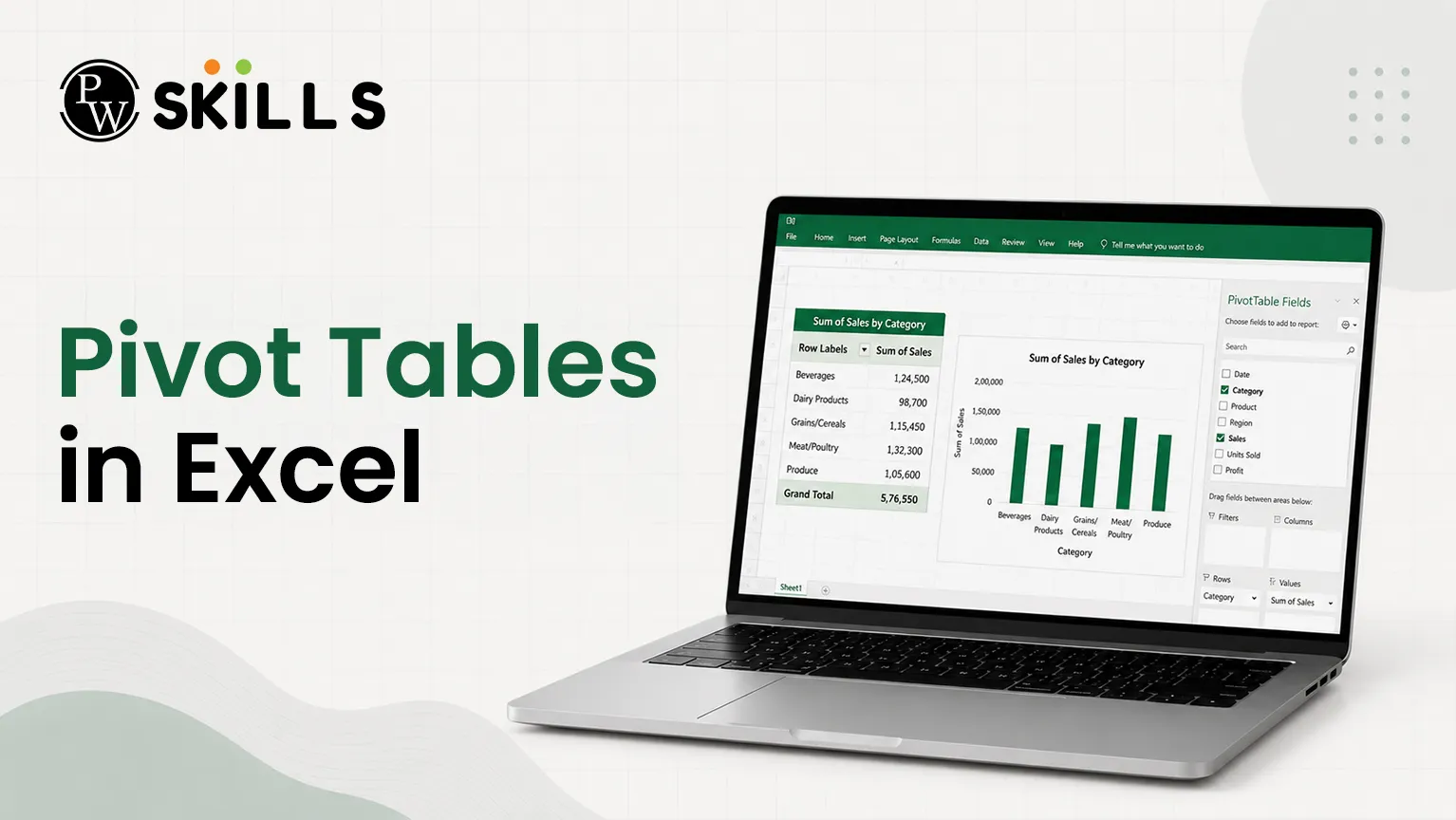
What is a Pivot Table in Excel?
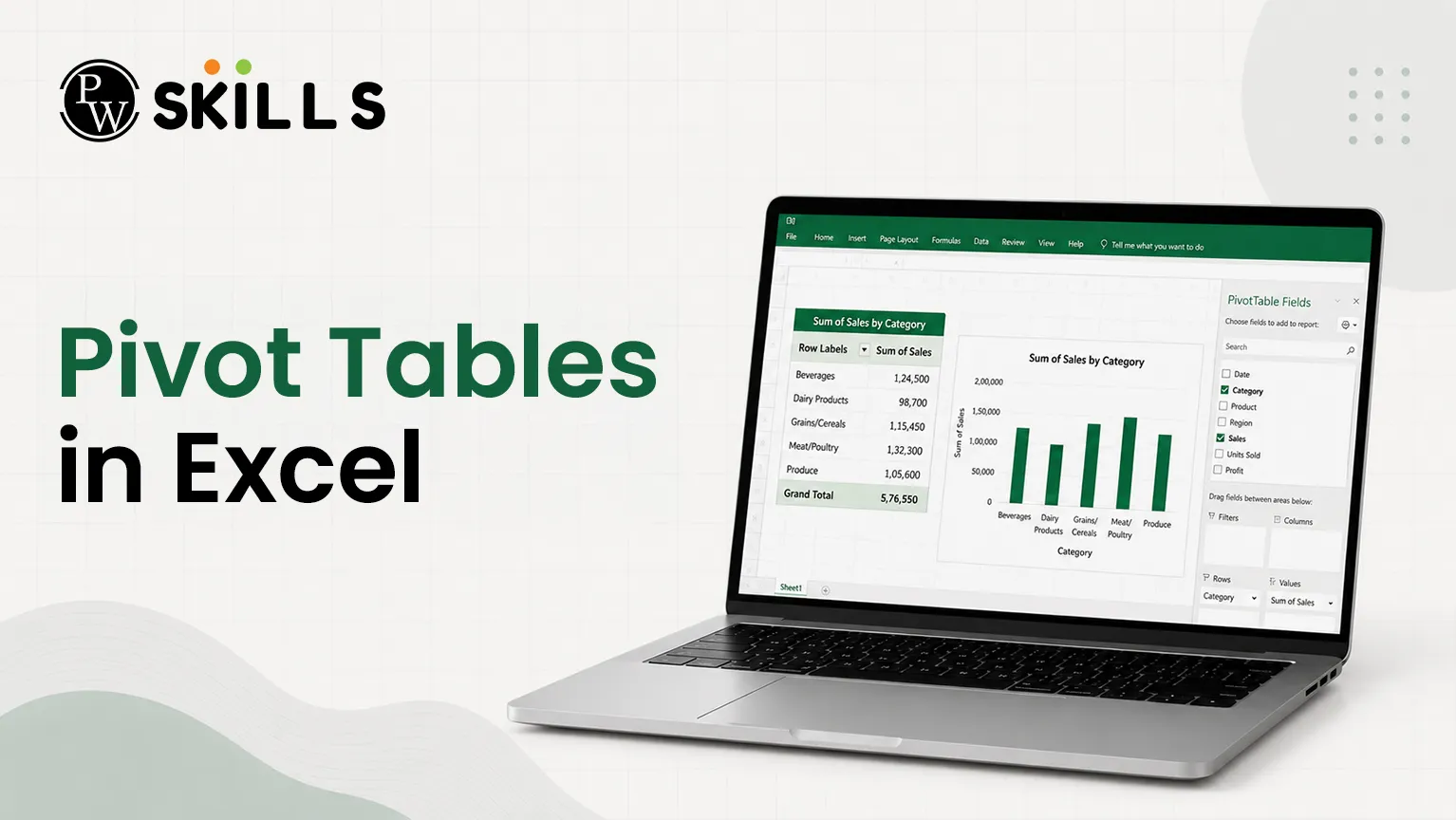
A pivot table is an interactive statistical engine built into spreadsheet software that summarizes large data sets instantly. Instead of writing complex, multi-layered formulas like COUNTIF or AVERAGEIF, you can drag and drop fields to structure tables according to your precise analytical goals.
Before going into real-world applications, it is necessary to understand the main functions that make this tool a must for analysts:
-
Instant Data Summarisation: Consolidates thousands of operational rows into clear, structured corporate summaries within seconds.
-
Dynamic Multi-Dimensional Analysis: Allows fields to be cross-examined simultaneously by shifting fields between rows and columns.
-
Flexible Filtering & Granular Drill-Downs: Isolates distinct subsets of corporate data to quickly focus on critical areas of interest.
-
Automated Data Aggregation: Automatically calculates sums, averages, counts, and percentages without manual mathematical updates.
How to Set Up a Pivot Table in Excel?
Building a summary table requires following a strict step-by-step structural workflow within the spreadsheet interface to ensure data clarity and integrity.
Step 1: Prepare and Select Source Data
Make sure your source table is tidy with unique header rows and no completely empty columns or rows. Select the exact rows and columns that contain your raw business records.
Step 2: Navigate the Ribbon
Go to the top toolbar and click on the Insert tab. Select the PivotTable option, and choose From Table/Range out of the available menu dropdowns.
Step 3: Configure Spreadsheet Placement
A dialogue box will appear, asking where to place the generated summary window. You can choose one of two structural locations depending on your workflow:
-
New Worksheet: Places the dynamic grid inside a completely separate sheet, which is ideal for large datasets or changing information.
-
Existing Worksheet: Embeds the analytical table directly alongside your current records, which works perfectly for static data files.
Step 4: Map Fields in the Layout Selection
Once loaded, the field list panel opens on the right side of the screen, displaying every header name from your dataset. Drag your chosen headers into the four key operational quadrant boxes:
|
Quadrant Box |
Functional Role in Layout Configuration |
Real-World Application Example |
|
Filters |
Restricts the entire data view based on a specific criterion |
Isolating records to a single country or specific year |
|
Columns |
Displays unique field attributes horizontally across the top |
Spreading matching results across separate columns |
|
Rows |
Organizes field values vertically down the left side |
Listing company names or global territories sequentially |
|
Values |
Executes mathematical calculations on selected metrics |
Calculating the sum of revenue or the average corporate age |
How to do Data Summarization with a Pivot Table in Excel?
To understand the practical value of automated summaries, it helps to compare standard formula-based methods against drag-and-drop pivot tools using a real corporate dataset.
The Formula Approach (Manual Layout Setup)
If you are evaluating the sheet manually, you will need separate formulas for finding the count and the average age of public versus private business firms in a corporate data sheet. To isolate public entities, the analyst would use a COUNTIF formula on the corporate classification range.
Then, to calculate the average lifespan, the analyst would use an AVERAGEIF statement on the age column. That’s right. But these individual expressions have to be perfectly accurate, and will need to be manually adjusted each time a new category is added.
The Pivot Table Approach (Automated Process)
Using a pivot table completely removes the need to write formulas. By simply dragging the company type header into the Rows area and moving the tracking ID to the Values area, you instantly generate a perfect breakdown.
The system automatically groups private and public entities into clean rows while displaying their matching totals alongside them. To find the average company age, you select the dropdown inside the values field settings panel and shift the mathematical operation from Sum to Average.
What is Dashboards with Pivot Table in Excel?
An effective dashboard serves as a unified, one-page business report that centralizes key performance indicators (KPIs) and operational metrics into a single location. It allows corporate leaders and managers to track high-level trends and make data-driven decisions without wading through raw numbers.
-
High-Level Metric Cards: Clear text blocks highlighting core corporate achievements and baseline values.
-
Dynamic Pivot Charts: Visual graphs linked directly to underlying summaries that update in real time when fields change.
-
Advanced Slicers: Interactive floating buttons that act as global filters across multiple visual components instantly.
What is Data Visualization with Pivot Table in Excel?
Choosing the correct visual layout is essential for clear business reporting. Different data relationships require specific chart types to accurately convey underlying operational insights.
1. Column Charts and Bar Charts
Column charts display corporate statistics using vertical rectangular blocks. They are ideal for comparative analysis across distinct categories, such as tracking win-loss counts side-by-side over consecutive years.
Bar charts function identically but align horizontally, shifting category names to the vertical axis. This provides extra reading space, making them perfect for displaying long structural labels like stadium names or long text indicators.
2. Line Charts for Trend Analysis
Line charts connect individual data points using straight, continuous lines to illustrate movement over time. This configuration is perfect for monitoring ongoing directional shifts, such as tracking corporate revenue growth or sports performance variations across fixed operational timelines.
3. Pie Charts and Doughnut Charts
Pie charts represent components as slices of a single circular graphic to show percentage shares of a whole. Doughnut charts feature a hollow center but serve the same structural purpose. To maintain visual clarity, limit these charts to five or six segments, making them ideal for simple breakdowns like comparing home versus away operational success.
4. Hit Maps and Tree Maps
Tree maps display nested data using colored rectangles where block sizes correspond to relative value weights. They act as effective heat maps for identifying concentrations of activity, such as instantly spotting which months yield the highest historical engagement.
KPIs vs Metrics with Pivot Table in Excel
Understanding the structural difference between business metrics and KPIs is crucial for impactful corporate reporting and dashboard design.
-
Metrics: Broad, continuous business processes that track ongoing corporate performance, such as monitoring monthly recurring revenue.
-
Key Performance Indicators (KPIs): Focused, strategic targets with specific deadlines and defined operational objectives, such as achieving a set financial milestone within the first quarter.
A reliable KPI must be realistic, straightforward, and easy to measure, ensuring clear alignment with the overall business strategy.





FAQs
1. How do I refresh a pivot table when my source data changes?
2. Can I group raw dates into months or quarters within a pivot table?
3. How do I link a single slicer filter to multiple pivot tables on my dashboard?
4. What is the quickest way to view the underlying records of a specific summarized cell?
5. Why does my pivot table display empty cells instead of zeros?





Get Free Counselling Today
and Clear up all your Doubts
 Live & recorded classes available at easeDashboard for progress trackingLakhs of practice questions

